State-ஐ பாதுகாத்தலும் reset செய்தலும்
State components-க்கு இடையில் தனிமைப்படுத்தப்பட்டுள்ளது. UI tree-இல் அவை இருக்கும் இடத்தின் அடிப்படையில் எந்த state எந்த component-க்கு சொந்தமானது என்பதை React கண்காணிக்கிறது. re-renders இடையில் state-ஐ எப்போது பாதுகாக்க வேண்டும், எப்போது reset செய்ய வேண்டும் என்பதை நீங்கள் கட்டுப்படுத்தலாம்.
நீங்கள் கற்றுக்கொள்ள போவது
- React state-ஐ எப்போது பாதுகாக்க அல்லது reset செய்ய தேர்வு செய்கிறது
- component-ன் state-ஐ reset செய்ய React-ஐ எப்படி கட்டாயப்படுத்துவது
- keys மற்றும் types, state பாதுகாக்கப்படுகிறதா என்பதை எப்படி பாதிக்கின்றன
State render tree-இல் உள்ள position-க்கு இணைக்கப்பட்டுள்ளது
உங்கள் UI-இல் உள்ள component structure-க்காக React render trees-ஐ உருவாக்குகிறது.
ஒரு component-க்கு state கொடுத்தால், அந்த state component-க்குள் “வாழ்கிறது” என்று நீங்கள் நினைக்கலாம். ஆனால் state உண்மையில் React-க்குள் வைத்திருக்கப்படுகிறது. render tree-இல் அந்த component இருக்கும் இடத்தைப் பயன்படுத்தி, React தன்னிடம் வைத்திருக்கும் ஒவ்வொரு state துண்டையும் சரியான component-உடன் இணைக்கிறது.
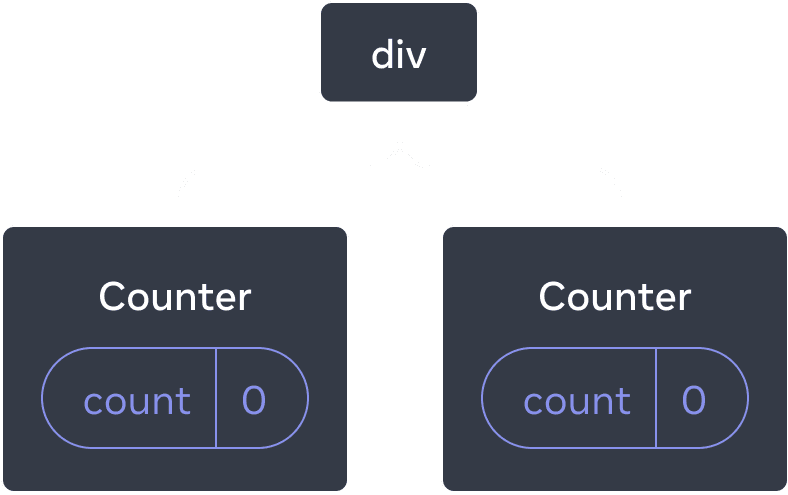
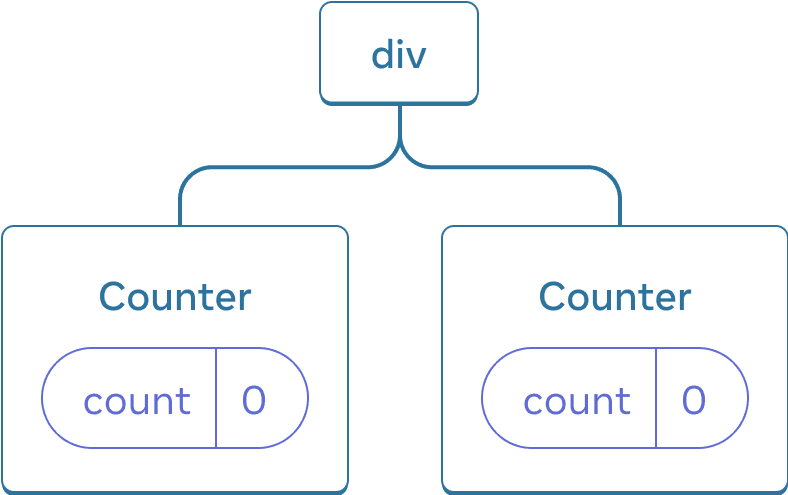
இங்கே ஒரே ஒரு <Counter /> JSX tag தான் உள்ளது, ஆனால் அது இரண்டு வேறு positions-இல் render செய்யப்படுகிறது:
import { useState } from 'react';

export default function App() {
  const counter = <Counter />;
  return (
    <div>
      {counter}
      {counter}
    </div>
  );
}

function Counter() {
  const [score, setScore] = useState(0);
  const [hover, setHover] = useState(false);

  let className = 'counter';
  if (hover) {
    className += ' hover';
  }

  return (
    <div
      className={className}
      onPointerEnter={() => setHover(true)}
      onPointerLeave={() => setHover(false)}
    >
      <h1>{score}</h1>
      <button onClick={() => setScore(score + 1)}>
        ஒன்றைச் சேர்
      </button>
    </div>
  );
}
இவை tree ஆக இப்படித் தெரியும்:
React tree
இவை இரண்டு தனி counters; ஏனெனில் ஒவ்வொன்றும் tree-இல் அதன் சொந்த position-இல் render செய்யப்படுகிறது. React-ஐ பயன்படுத்தும்போது இந்த positions பற்றி பொதுவாக சிந்திக்க வேண்டியதில்லை; ஆனால் இது எப்படி வேலை செய்கிறது என்பதைப் புரிந்துகொள்வது பயனுள்ளதாக இருக்கும்.
React-இல், screen-இல் உள்ள ஒவ்வொரு component-க்கும் முழுமையாக தனிமைப்படுத்தப்பட்ட state உள்ளது. எடுத்துக்காட்டாக, இரண்டு Counter components-ஐ பக்கப்பக்கமாக render செய்தால், ஒவ்வொன்றுக்கும் தனித்தனி, independent score மற்றும் hover states கிடைக்கும்.
இரண்டு counters-யையும் click செய்து பாருங்கள்; அவை ஒன்றையொன்று பாதிக்கவில்லை என்பதை கவனியுங்கள்:
import { useState } from 'react';

export default function App() {
  return (
    <div>
      <Counter />
      <Counter />
    </div>
  );
}

function Counter() {
  const [score, setScore] = useState(0);
  const [hover, setHover] = useState(false);

  let className = 'counter';
  if (hover) {
    className += ' hover';
  }

  return (
    <div
      className={className}
      onPointerEnter={() => setHover(true)}
      onPointerLeave={() => setHover(false)}
    >
      <h1>{score}</h1>
      <button onClick={() => setScore(score + 1)}>
        ஒன்றைச் சேர்
      </button>
    </div>
  );
}
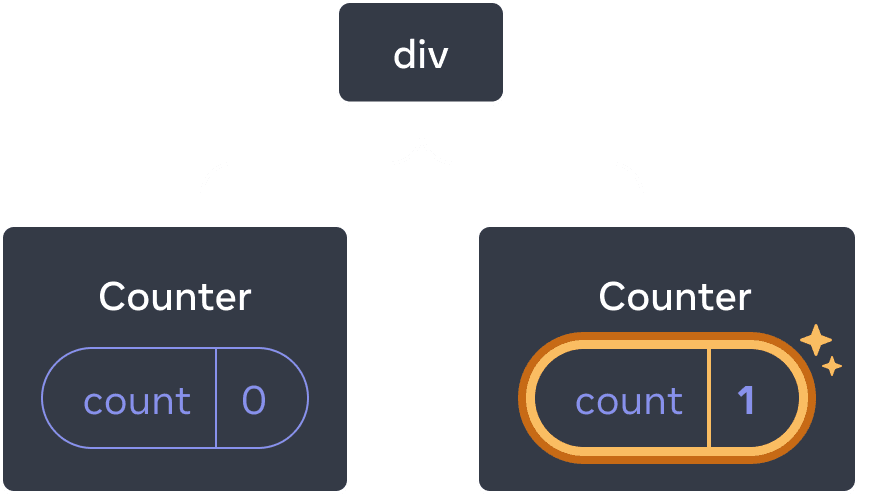
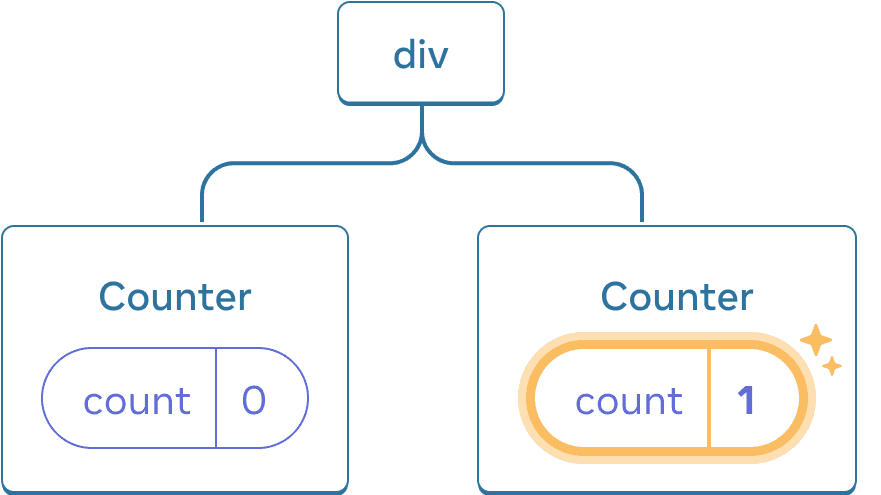
நீங்கள் காண்பது போல, ஒரு counter update ஆன போது, அந்த component-க்கான state மட்டும் update ஆகிறது:
State-ஐ update செய்தல்
tree-இல் அதே position-இல் அதே component-ஐ render செய்யும் வரை React state-ஐ வைத்திருக்கும். இதைப் பார்க்க, இரண்டு counters-யையும் increment செய்து, “இரண்டாவது counter-ஐ render செய்” checkbox-ஐ uncheck செய்து இரண்டாவது component-ஐ அகற்றுங்கள்; பின்னர் மீண்டும் tick செய்து அதைச் சேருங்கள்:
import { useState } from 'react';

export default function App() {
  const [showB, setShowB] = useState(true);
  return (
    <div>
      <Counter />
      {showB && <Counter />}
      <label>
        <input
          type="checkbox"
          checked={showB}
          onChange={e => {
            setShowB(e.target.checked)
          }}
        />
        இரண்டாவது counter-ஐ render செய்
      </label>
    </div>
  );
}

function Counter() {
  const [score, setScore] = useState(0);
  const [hover, setHover] = useState(false);

  let className = 'counter';
  if (hover) {
    className += ' hover';
  }

  return (
    <div
      className={className}
      onPointerEnter={() => setHover(true)}
      onPointerLeave={() => setHover(false)}
    >
      <h1>{score}</h1>
      <button onClick={() => setScore(score + 1)}>
        ஒன்றைச் சேர்
      </button>
    </div>
  );
}
இரண்டாவது counter-ஐ render செய்வதை நிறுத்தும் உடனே அதன் state முழுவதும் மறைந்து விடுகிறது என்பதை கவனியுங்கள். React component ஒன்றை அகற்றும்போது, அதன் state-ஐ destroy செய்வதால்தான் இது நடக்கிறது.
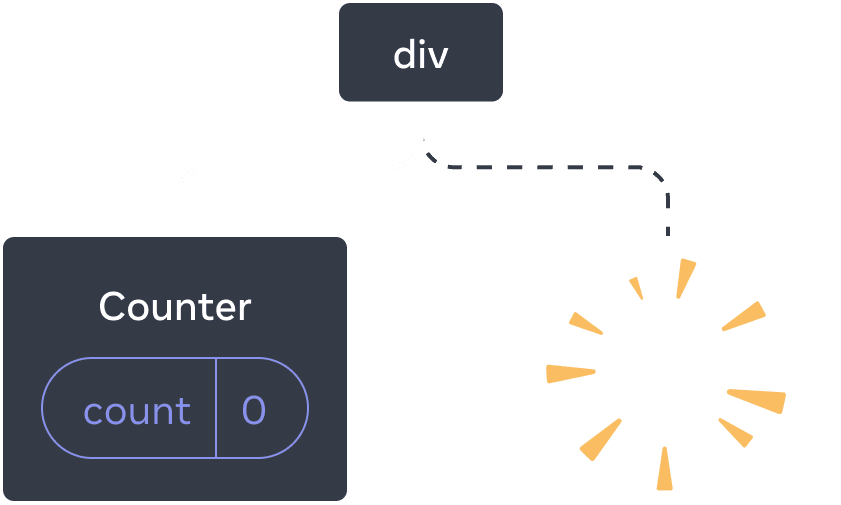
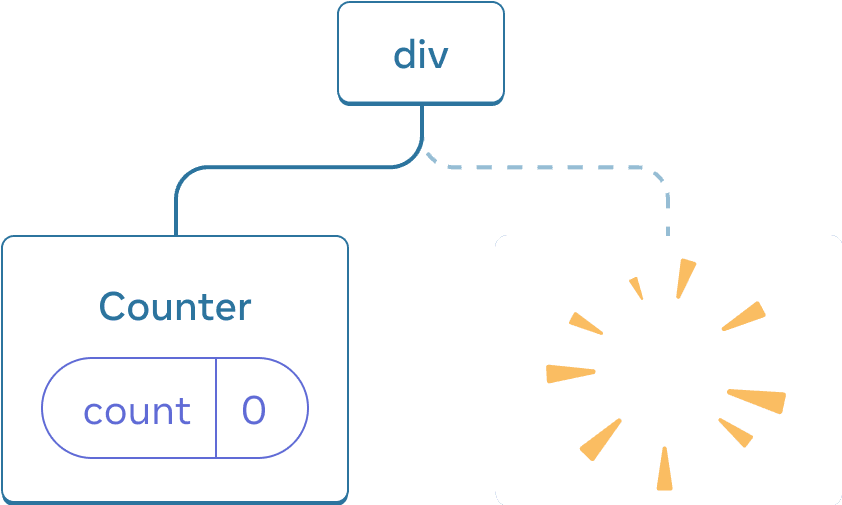
component ஒன்றை நீக்குதல்
”இரண்டாவது counter-ஐ render செய்” என்பதை tick செய்தால், இரண்டாவது Counter மற்றும் அதன் state ஆரம்பத்திலிருந்து (score = 0) initialize செய்யப்பட்டு DOM-இல் சேர்க்கப்படுகிறது.
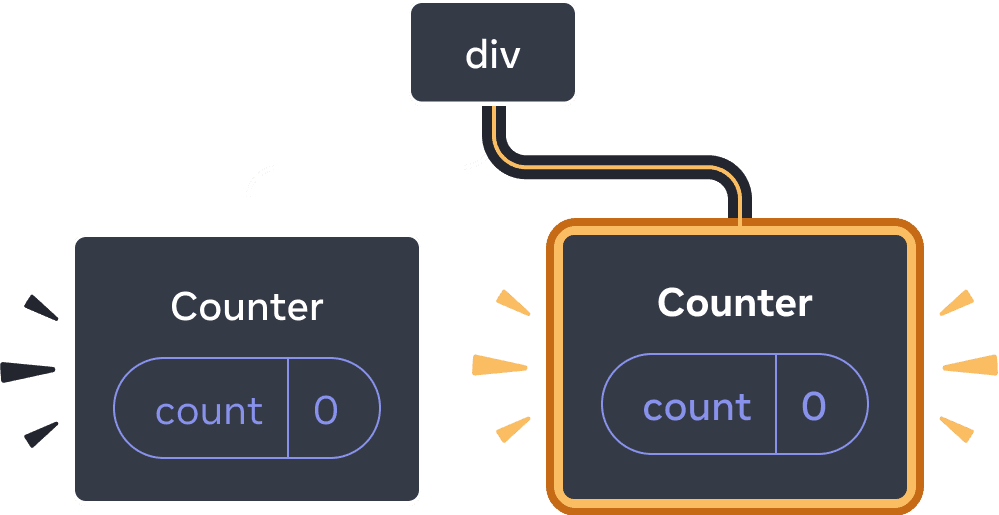
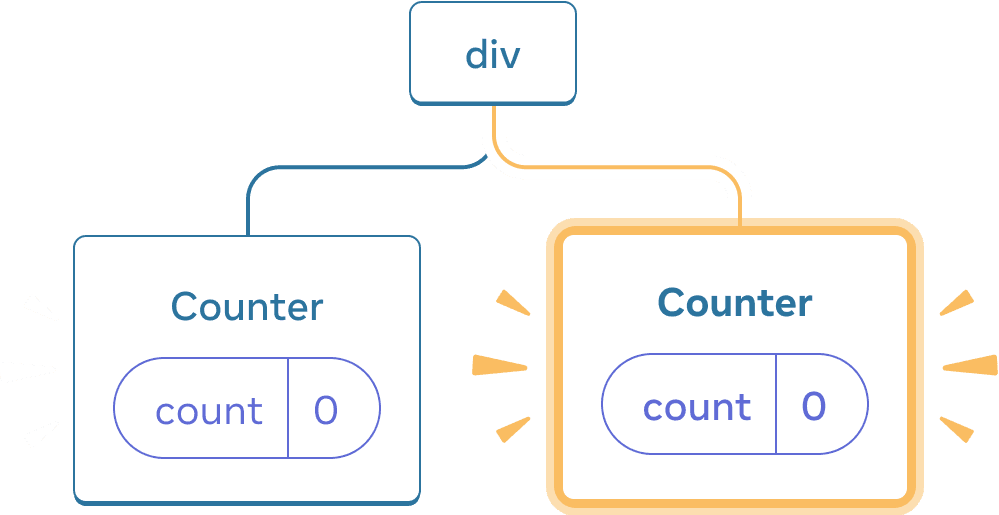
component ஒன்றைச் சேர்த்தல்
UI tree-இல் component அதன் position-இல் render செய்யப்படும் வரை React அந்த component-ன் state-ஐ பாதுகாக்கிறது. அது அகற்றப்பட்டாலோ, அதே position-இல் வேறு component render செய்யப்பட்டாலோ, React அதன் state-ஐ கைவிடும்.
அதே position-இல் அதே component state-ஐ பாதுகாக்கிறது
இந்த எடுத்துக்காட்டில், இரண்டு வேறு <Counter /> tags உள்ளன:
import { useState } from 'react';

export default function App() {
  const [isFancy, setIsFancy] = useState(false);
  return (
    <div>
      {isFancy ? (
        <Counter isFancy={true} />
      ) : (
        <Counter isFancy={false} />
      )}
      <label>
        <input
          type="checkbox"
          checked={isFancy}
          onChange={e => {
            setIsFancy(e.target.checked)
          }}
        />
        fancy styling பயன்படுத்து
      </label>
    </div>
  );
}

function Counter({ isFancy }) {
  const [score, setScore] = useState(0);
  const [hover, setHover] = useState(false);

  let className = 'counter';
  if (hover) {
    className += ' hover';
  }
  if (isFancy) {
    className += ' fancy';
  }

  return (
    <div
      className={className}
      onPointerEnter={() => setHover(true)}
      onPointerLeave={() => setHover(false)}
    >
      <h1>{score}</h1>
      <button onClick={() => setScore(score + 1)}>
        ஒன்றைச் சேர்
      </button>
    </div>
  );
}
checkbox-ஐ tick செய்தாலும் clear செய்தாலும், counter state reset ஆகாது. isFancy true ஆக இருந்தாலும் false ஆக இருந்தாலும், root App component return செய்யும் div-ன் முதல் child ஆக எப்போதும் <Counter /> இருக்கும்:
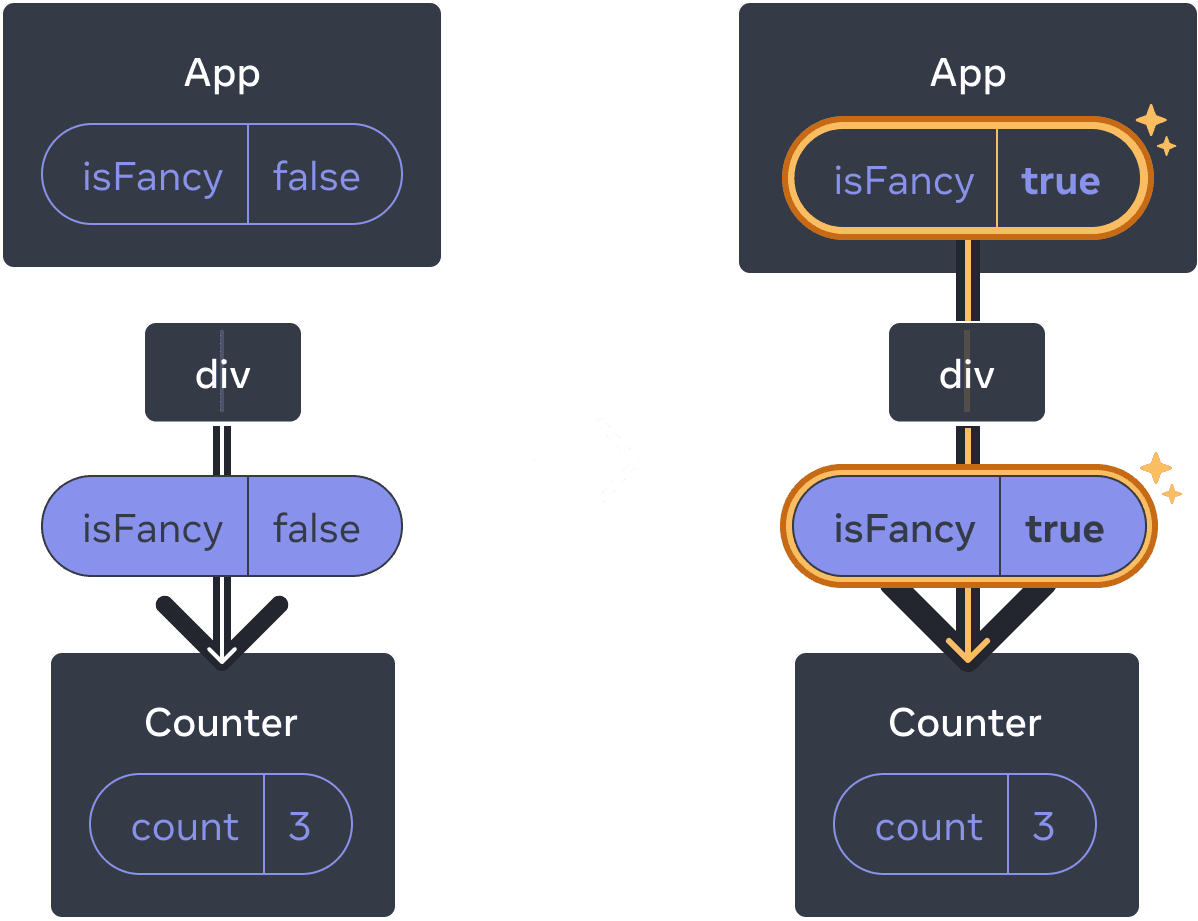
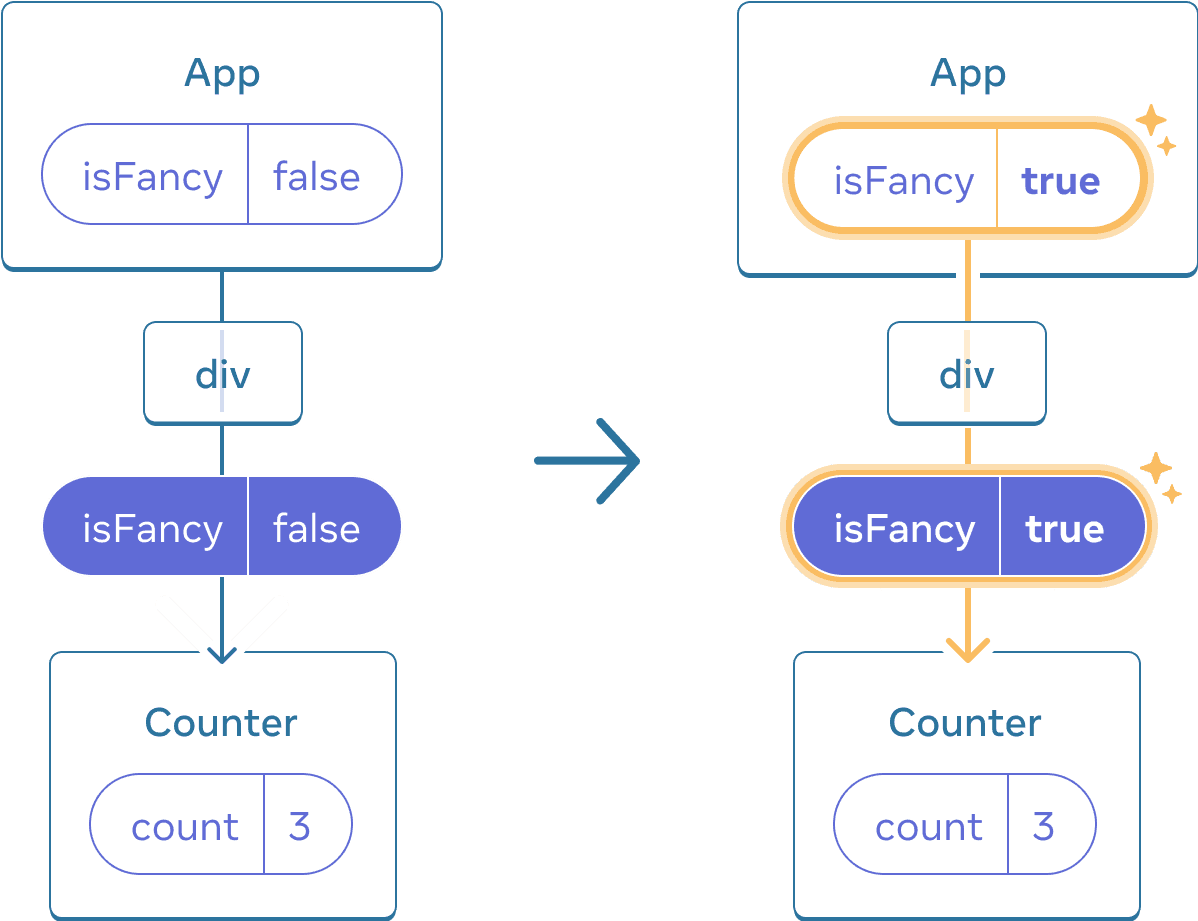
Counter அதே position-இல் இருப்பதால், App state update ஆனாலும் Counter reset ஆகாது
அதே position-இல் அதே component இருப்பதால், React-ன் பார்வையில் அது அதே counter தான்.
அதே position-இல் வேறு components state-ஐ reset செய்கின்றன
இந்த எடுத்துக்காட்டில், checkbox-ஐ tick செய்தால் <Counter> ஒரு <p>-ஆல் மாற்றப்படும்:
import { useState } from 'react';

export default function App() {
  const [isPaused, setIsPaused] = useState(false);
  return (
    <div>
      {isPaused ? (
        <p>பிறகு பார்க்கலாம்!</p>
      ) : (
        <Counter />
      )}
      <label>
        <input
          type="checkbox"
          checked={isPaused}
          onChange={e => {
            setIsPaused(e.target.checked)
          }}
        />
        ஓய்வு எடு
      </label>
    </div>
  );
}

function Counter() {
  const [score, setScore] = useState(0);
  const [hover, setHover] = useState(false);

  let className = 'counter';
  if (hover) {
    className += ' hover';
  }

  return (
    <div
      className={className}
      onPointerEnter={() => setHover(true)}
      onPointerLeave={() => setHover(false)}
    >
      <h1>{score}</h1>
      <button onClick={() => setScore(score + 1)}>
        ஒன்றைச் சேர்
      </button>
    </div>
  );
}
இங்கே, அதே position-இல் வேறு component types-க்கு இடையில் switch செய்கிறீர்கள். ஆரம்பத்தில் <div>-ன் முதல் child-இல் Counter இருந்தது. ஆனால் நீங்கள் p-ஐ மாற்றிப் போட்டபோது, React UI tree-இலிருந்து Counter-ஐ அகற்றி அதன் state-ஐ destroy செய்தது.
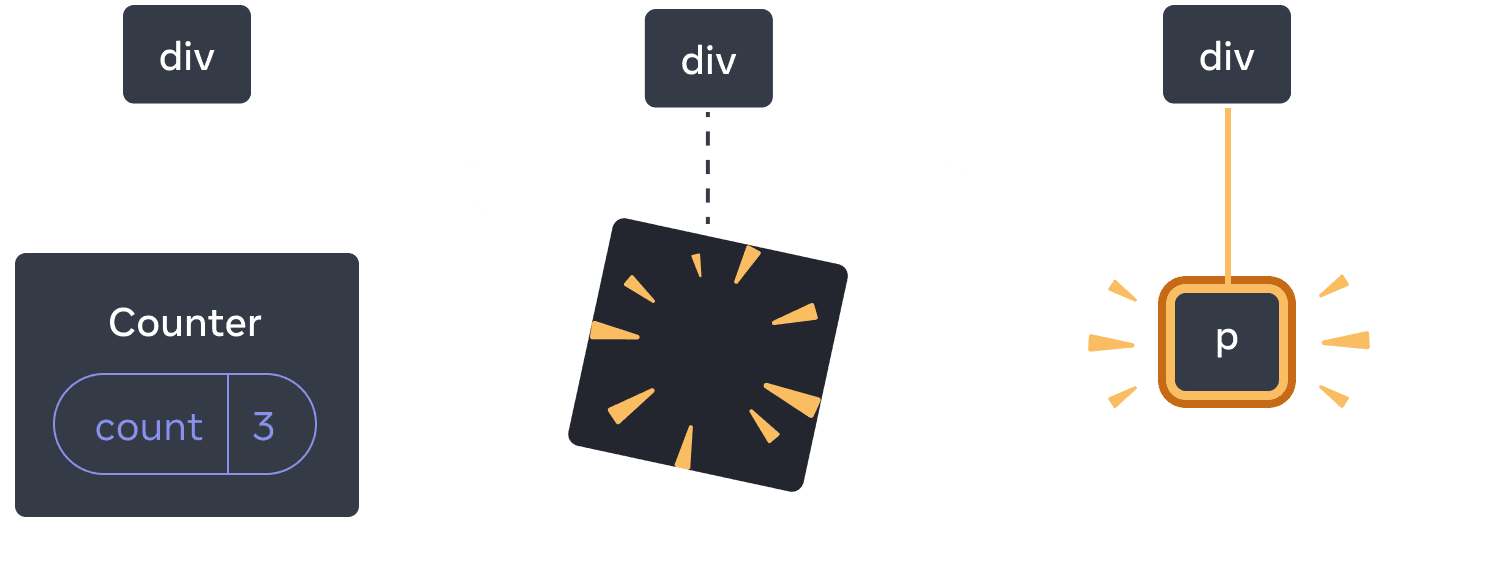
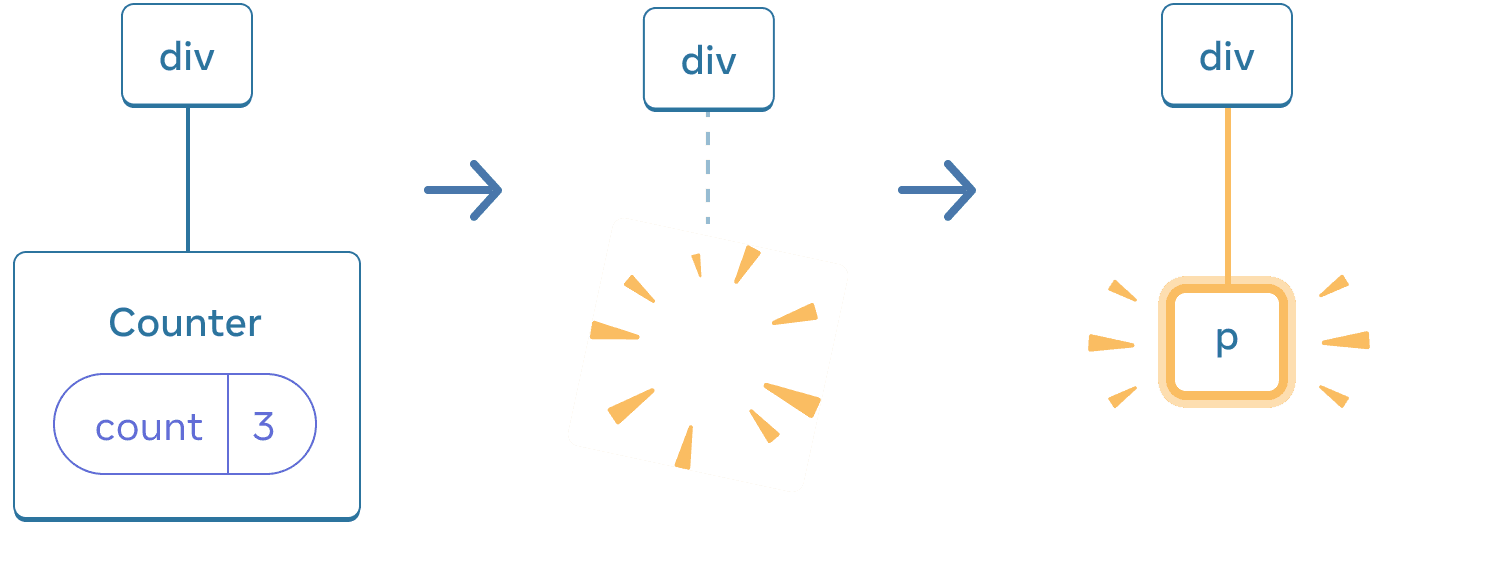
Counter p ஆக மாறும்போது, Counter நீக்கப்பட்டு p சேர்க்கப்படுகிறது
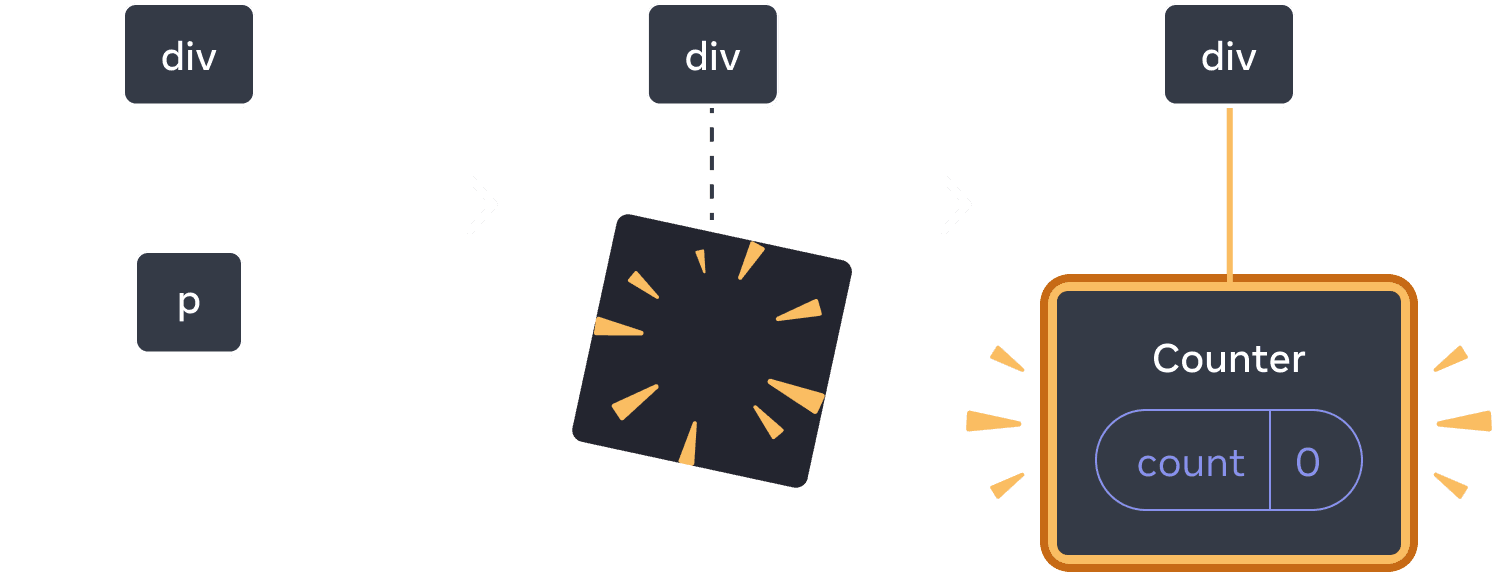
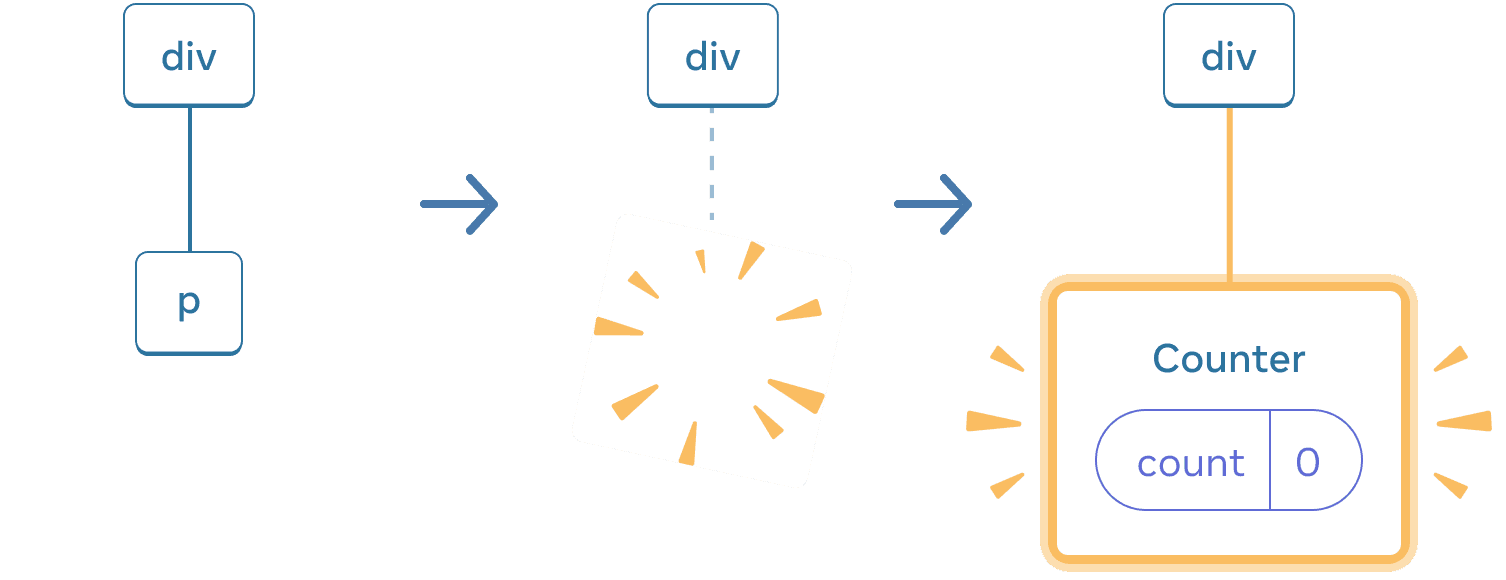
மீண்டும் switch செய்யும்போது, p நீக்கப்பட்டு Counter சேர்க்கப்படுகிறது
மேலும், அதே position-இல் வேறு component ஒன்றை render செய்தால், அதன் முழு subtree-ன் state reset ஆகும். இது எப்படி வேலை செய்கிறது என்பதைப் பார்க்க, counter-ஐ increment செய்து பின்னர் checkbox-ஐ tick செய்யுங்கள்:
import { useState } from 'react';

export default function App() {
  const [isFancy, setIsFancy] = useState(false);
  return (
    <div>
      {isFancy ? (
        <div>
          <Counter isFancy={true} />
        </div>
      ) : (
        <section>
          <Counter isFancy={false} />
        </section>
      )}
      <label>
        <input
          type="checkbox"
          checked={isFancy}
          onChange={e => {
            setIsFancy(e.target.checked)
          }}
        />
        fancy styling பயன்படுத்து
      </label>
    </div>
  );
}

function Counter({ isFancy }) {
  const [score, setScore] = useState(0);
  const [hover, setHover] = useState(false);

  let className = 'counter';
  if (hover) {
    className += ' hover';
  }
  if (isFancy) {
    className += ' fancy';
  }

  return (
    <div
      className={className}
      onPointerEnter={() => setHover(true)}
      onPointerLeave={() => setHover(false)}
    >
      <h1>{score}</h1>
      <button onClick={() => setScore(score + 1)}>
        ஒன்றைச் சேர்
      </button>
    </div>
  );
}
checkbox-ஐ click செய்தால் counter state reset ஆகிறது. நீங்கள் Counter-ஐ render செய்தாலும், div-ன் முதல் child section-இலிருந்து div ஆக மாறுகிறது. child section DOM-இலிருந்து அகற்றப்பட்டபோது, அதன் கீழுள்ள முழு tree-யும் (Counter மற்றும் அதன் state உட்பட) destroy செய்யப்பட்டது.
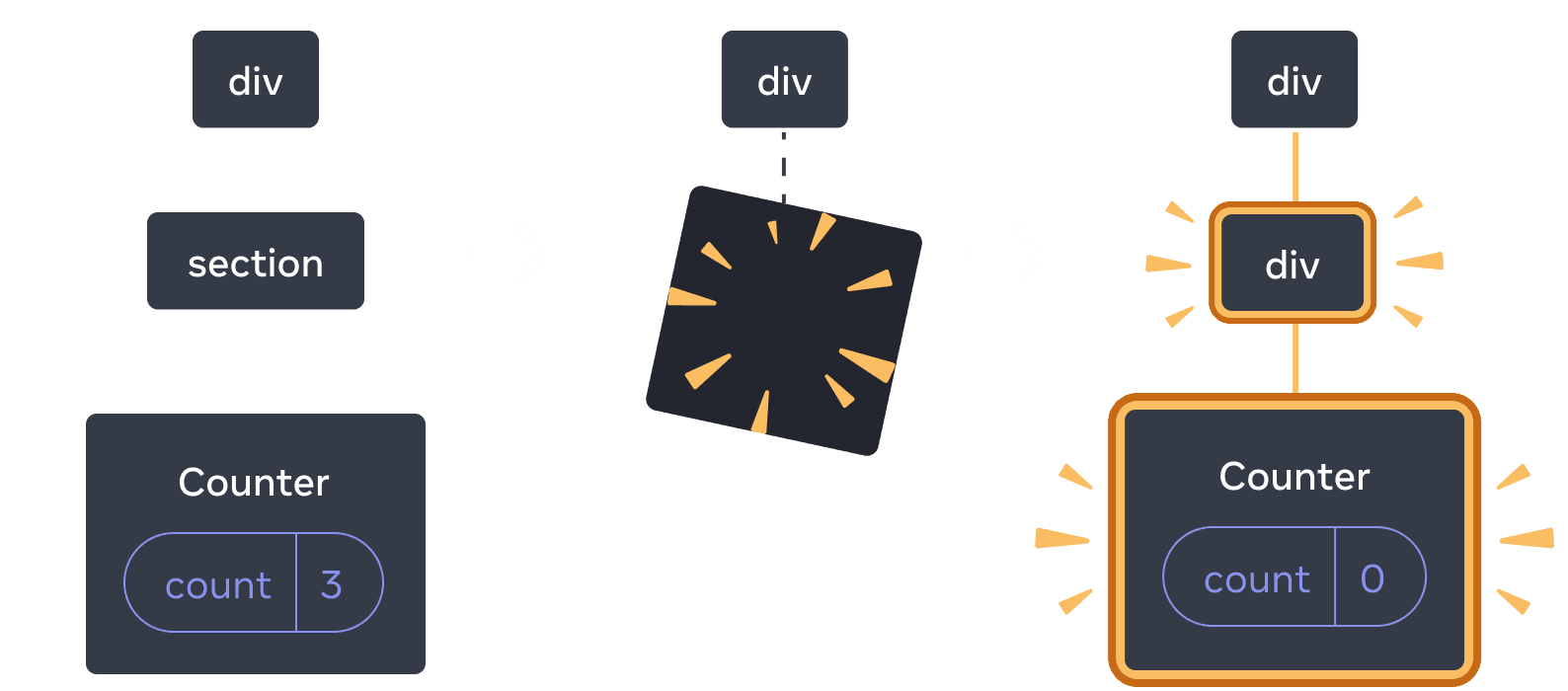
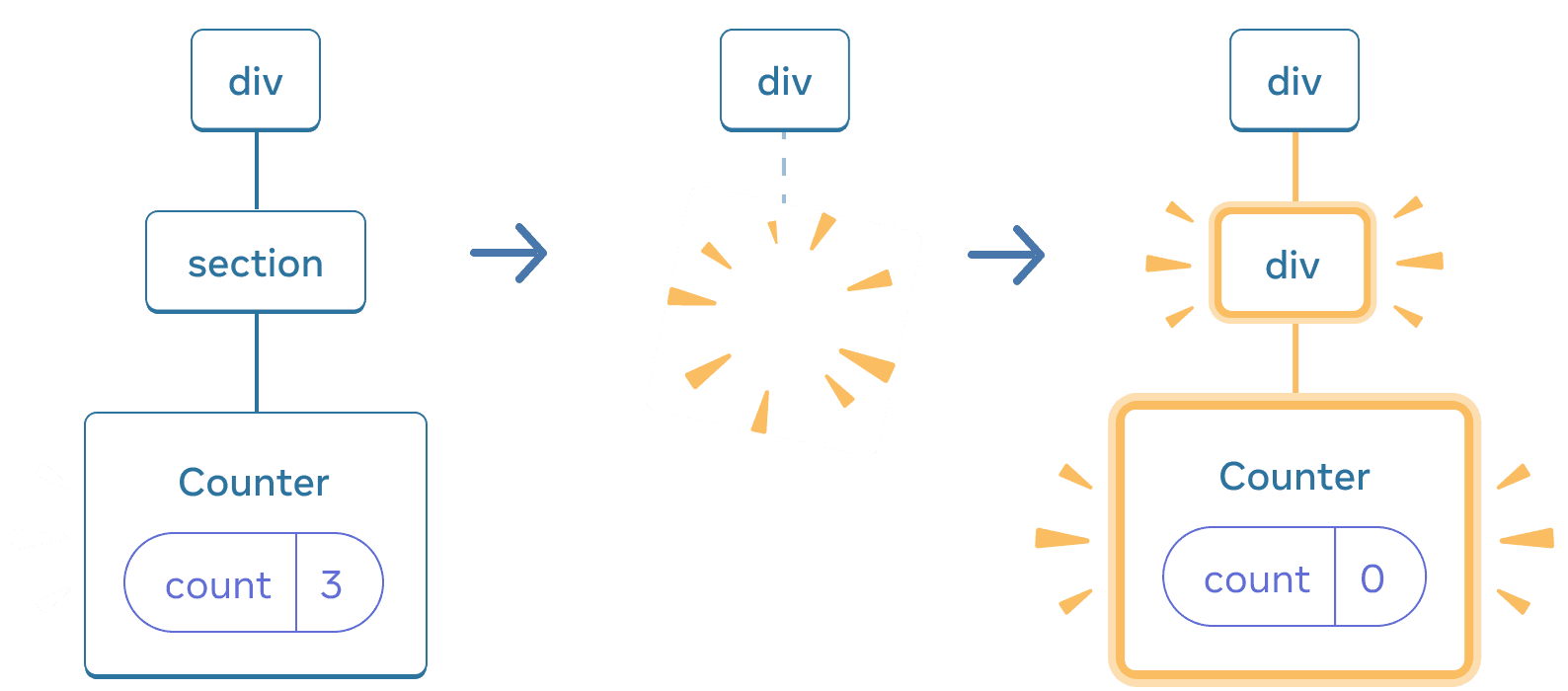
section div ஆக மாறும்போது, section நீக்கப்பட்டு புதிய div சேர்க்கப்படுகிறது
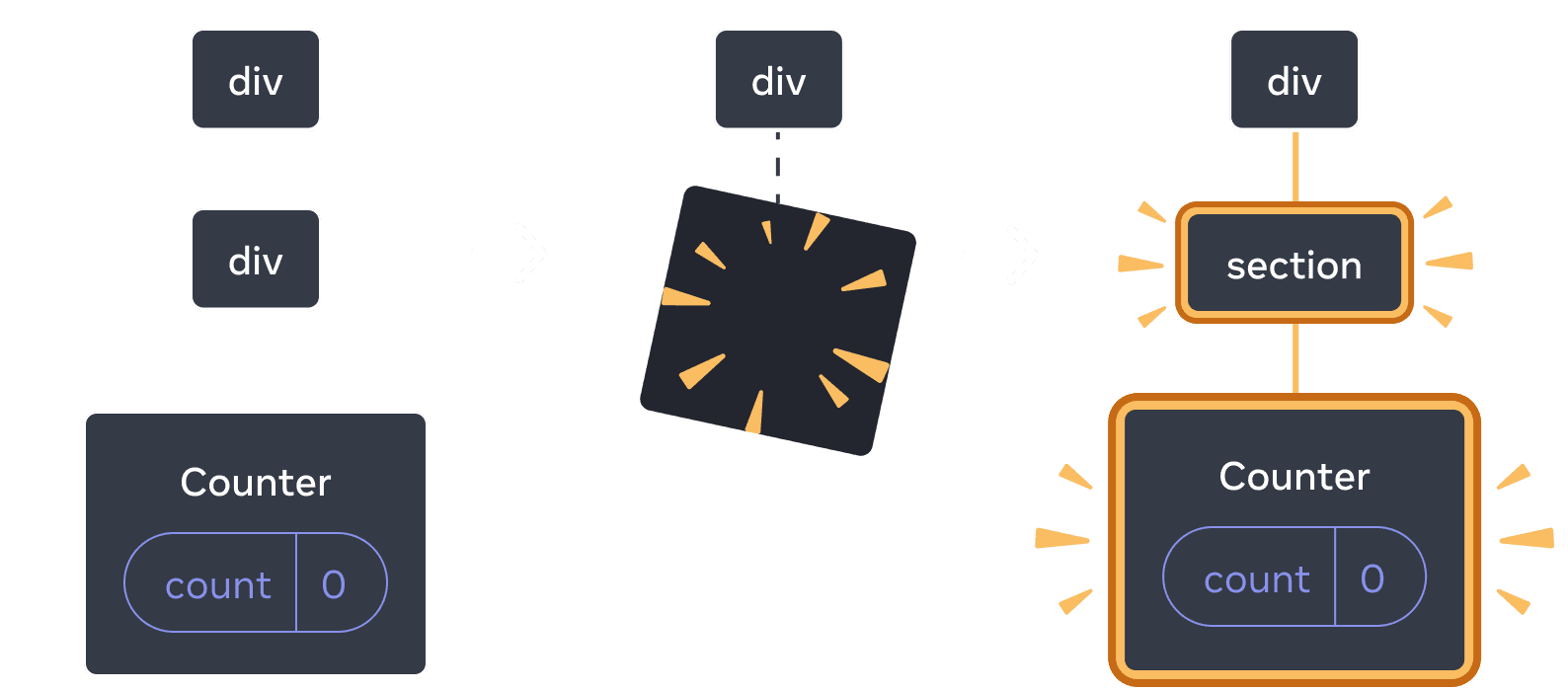
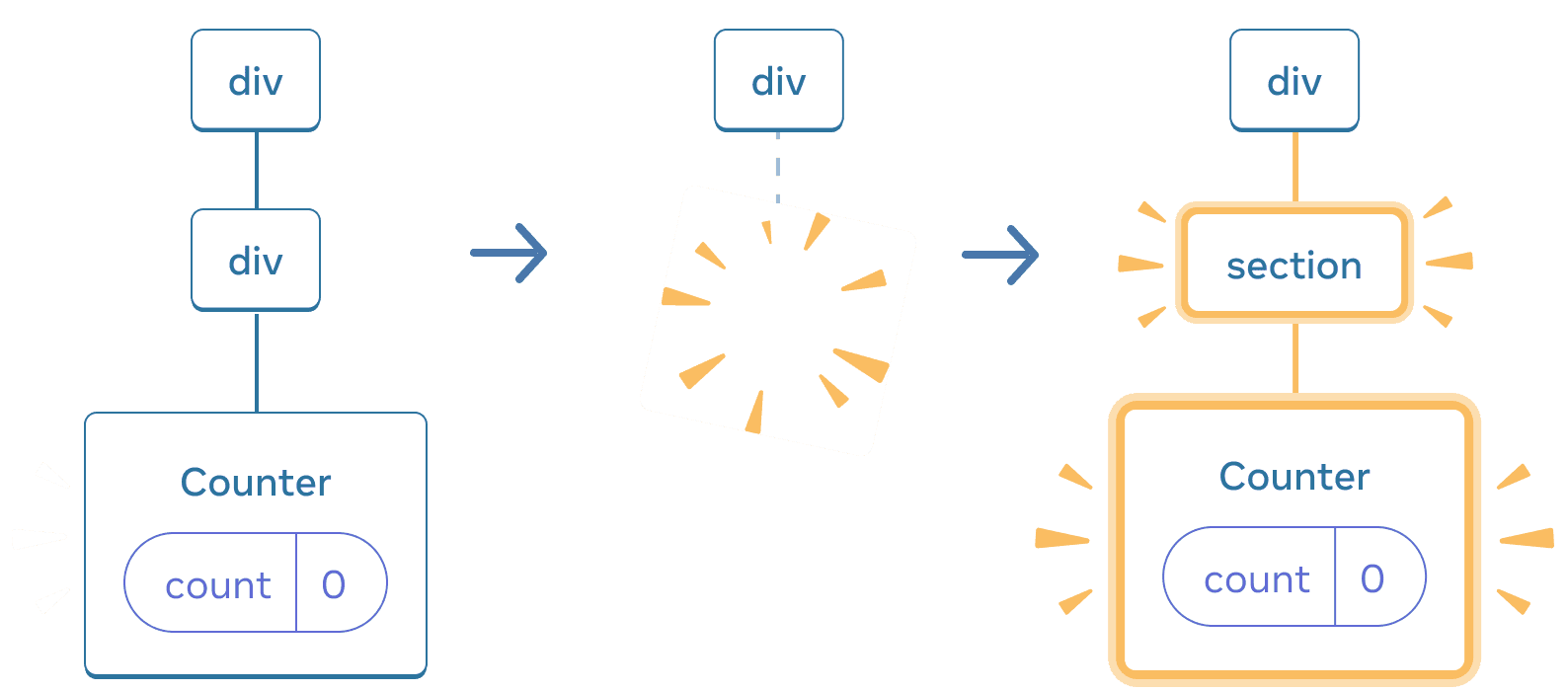
மீண்டும் switch செய்யும்போது, div நீக்கப்பட்டு புதிய section சேர்க்கப்படுகிறது
ஒரு பொதுவான விதியாக, re-renders இடையில் state-ஐ பாதுகாக்க விரும்பினால், உங்கள் tree-ன் structure ஒரு render-இலிருந்து அடுத்த render-க்கு “match up” ஆக வேண்டும். structure வேறுபட்டால், state destroy ஆகும்; ஏனெனில் React tree-இலிருந்து component ஒன்றை அகற்றும்போது state-ஐ destroy செய்கிறது.
அதே position-இல் state-ஐ reset செய்தல்
இயல்பாக, component அதே position-இல் இருக்கும் வரை React அதன் state-ஐ பாதுகாக்கும். பொதுவாக, நீங்கள் விரும்புவதும் இதுதான்; எனவே default behavior ஆக இது பொருத்தமானது. ஆனால் சில நேரங்களில், component-ன் state-ஐ reset செய்ய நீங்கள் விரும்பலாம். ஒவ்வொரு turn-இலும் இரண்டு players தங்கள் scores-ஐ கண்காணிக்க அனுமதிக்கும் இந்த app-ஐப் பாருங்கள்:
import { useState } from 'react';

export default function Scoreboard() {
  const [isPlayerA, setIsPlayerA] = useState(true);
  return (
    <div>
      {isPlayerA ? (
        <Counter person="Taylor" />
      ) : (
        <Counter person="Sarah" />
      )}
      <button onClick={() => {
        setIsPlayerA(!isPlayerA);
      }}>
        அடுத்த player!
      </button>
    </div>
  );
}

function Counter({ person }) {
  const [score, setScore] = useState(0);
  const [hover, setHover] = useState(false);

  let className = 'counter';
  if (hover) {
    className += ' hover';
  }

  return (
    <div
      className={className}
      onPointerEnter={() => setHover(true)}
      onPointerLeave={() => setHover(false)}
    >
      <h1>{person}-ன் மதிப்பெண்: {score}</h1>
      <button onClick={() => setScore(score + 1)}>
        ஒன்றைச் சேர்
      </button>
    </div>
  );
}
தற்போது, player-ஐ மாற்றும் போது score பாதுகாக்கப்படுகிறது. இரண்டு Counters-மும் அதே position-இல் தோன்றுகின்றன; எனவே person prop மாறிய அதே Counter என்று React பார்க்கிறது.
ஆனால் கருத்து ரீதியாக, இந்த app-இல் அவை இரண்டு தனி counters ஆக இருக்க வேண்டும். UI-இல் அவை அதே இடத்தில் தோன்றலாம்; ஆனால் ஒன்று Taylor-க்கான counter, மற்றொன்று Sarah-க்கான counter.
அவற்றுக்கு இடையில் switch செய்யும் போது state-ஐ reset செய்ய இரண்டு வழிகள் உள்ளன:
- components-ஐ வேறு positions-இல் render செய்தல்
- ஒவ்வொரு component-க்கும்
keyமூலம் explicit identity கொடுத்தல்
Option 1: component ஒன்றை வேறு positions-இல் render செய்தல்
இந்த இரண்டு Counters independent ஆக இருக்க வேண்டும் என்றால், அவற்றை இரண்டு வேறு positions-இல் render செய்யலாம்:
import { useState } from 'react';

export default function Scoreboard() {
  const [isPlayerA, setIsPlayerA] = useState(true);
  return (
    <div>
      {isPlayerA &&
        <Counter person="Taylor" />
      }
      {!isPlayerA &&
        <Counter person="Sarah" />
      }
      <button onClick={() => {
        setIsPlayerA(!isPlayerA);
      }}>
        அடுத்த player!
      </button>
    </div>
  );
}

function Counter({ person }) {
  const [score, setScore] = useState(0);
  const [hover, setHover] = useState(false);

  let className = 'counter';
  if (hover) {
    className += ' hover';
  }

  return (
    <div
      className={className}
      onPointerEnter={() => setHover(true)}
      onPointerLeave={() => setHover(false)}
    >
      <h1>{person}-ன் மதிப்பெண்: {score}</h1>
      <button onClick={() => setScore(score + 1)}>
        ஒன்றைச் சேர்
      </button>
    </div>
  );
}
- ஆரம்பத்தில்,
isPlayerAtrueஆக உள்ளது. ஆகவே முதல் position-இல்Counterstate உள்ளது; இரண்டாவது position காலியாக உள்ளது. - ”அடுத்த player” button-ஐ click செய்தால், முதல் position clear ஆகிறது; ஆனால் இரண்டாவது position இப்போது
Counterஒன்றைக் கொண்டுள்ளது.
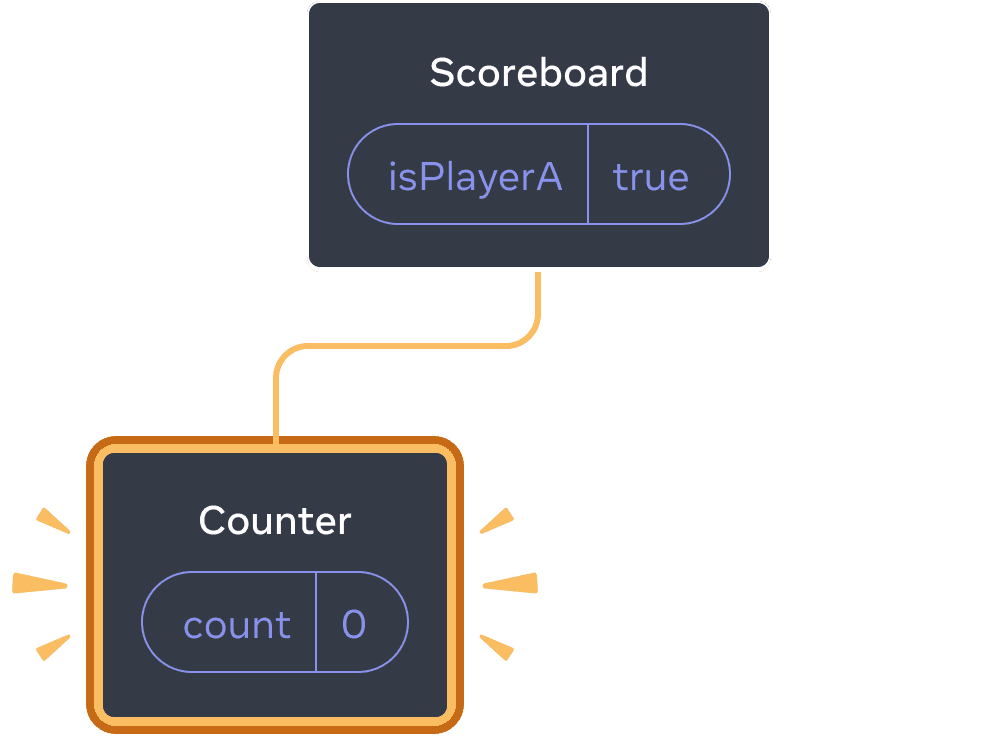
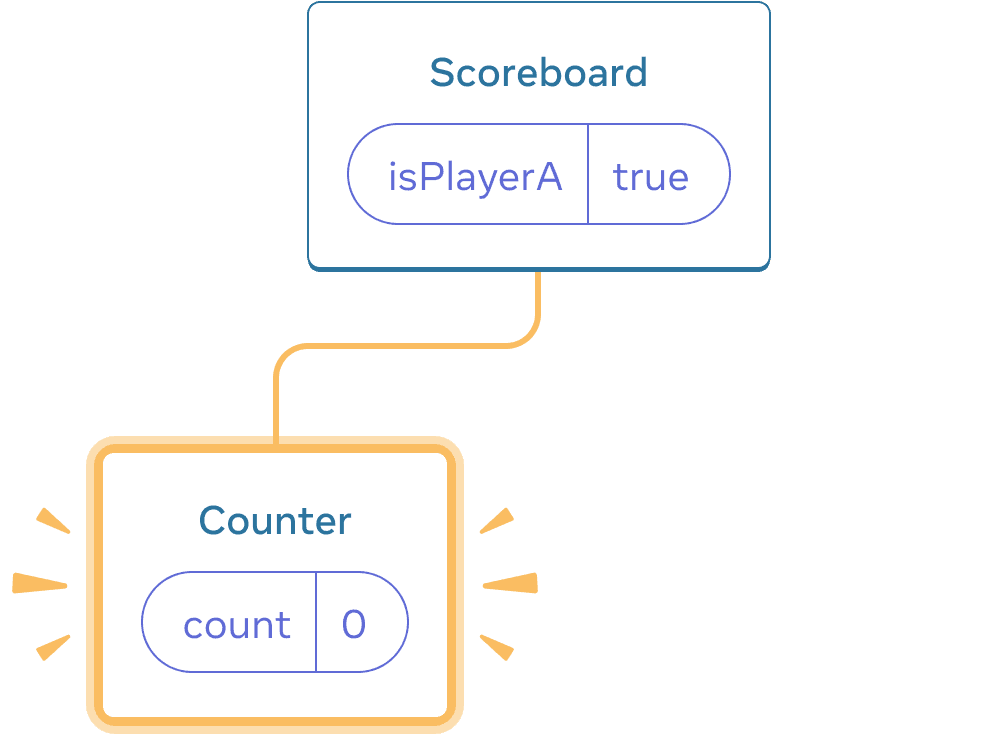
ஆரம்ப state
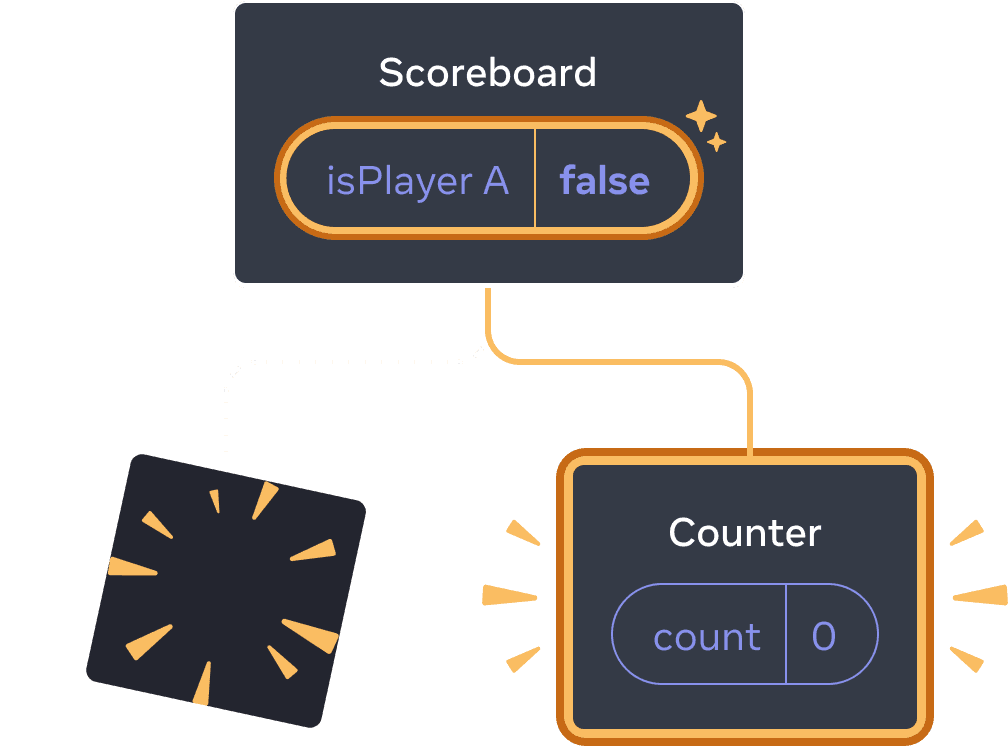
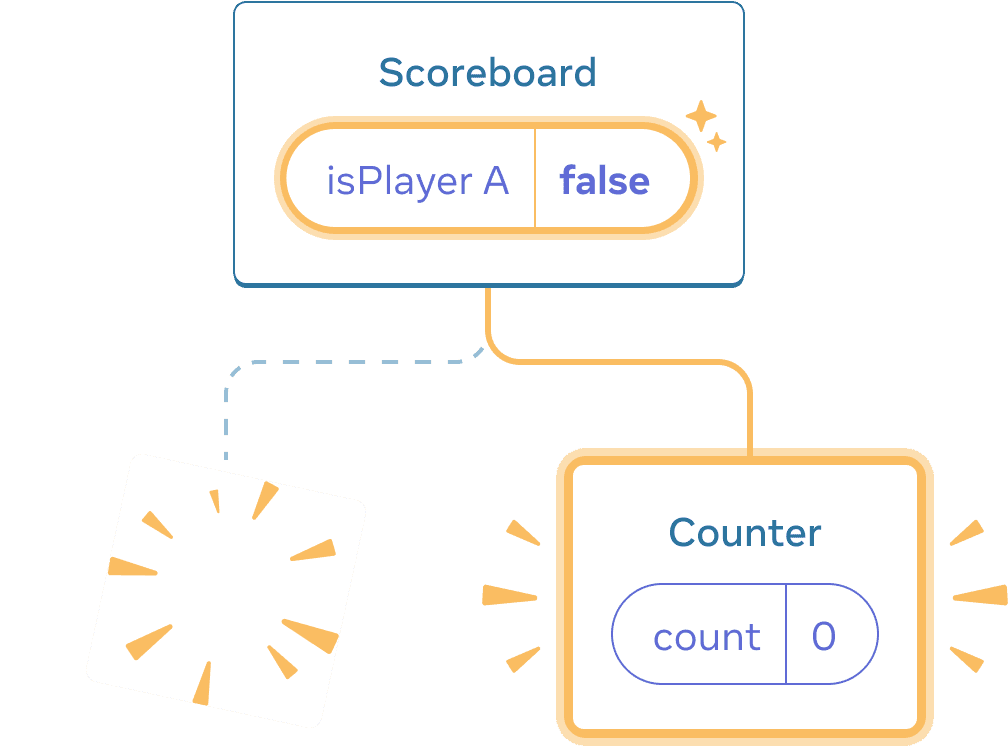
”next” click செய்தல்
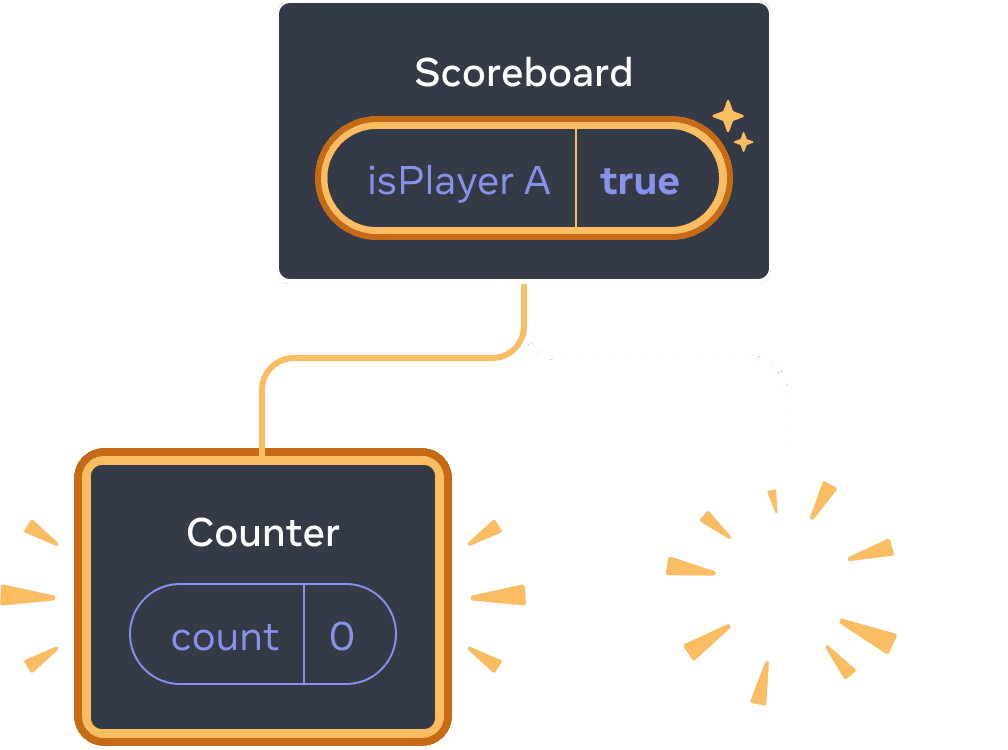
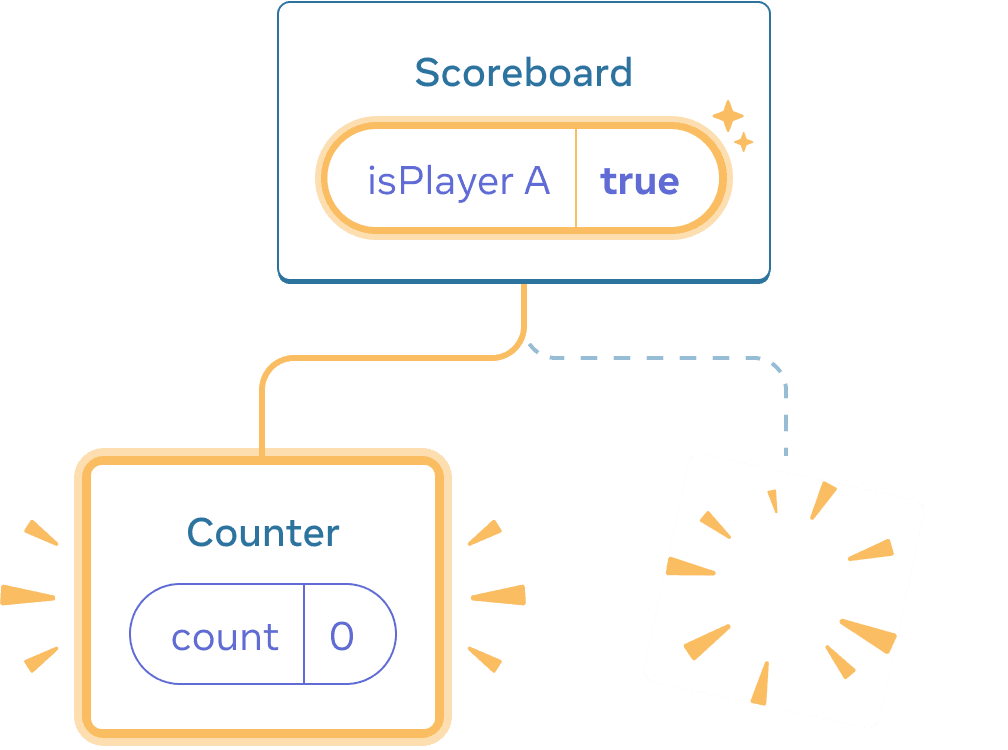
”next” மீண்டும் click செய்தல்
ஒவ்வொரு Counter-ன் state, அது DOM-இலிருந்து அகற்றப்படும் ஒவ்வொரு முறையும் destroy ஆகிறது. அதனால் தான் button-ஐ click செய்யும் ஒவ்வொரு முறையும் அவை reset ஆகின்றன.
அதே இடத்தில் render செய்யப்படும் independent components சிலவே இருந்தால் இந்த solution வசதியானது. இந்த எடுத்துக்காட்டில் இரண்டு மட்டுமே உள்ளன, எனவே JSX-இல் இரண்டையும் தனித்தனியாக render செய்வது சிரமமல்ல.
Option 2: key மூலம் state-ஐ reset செய்தல்
component-ன் state-ஐ reset செய்ய இன்னொரு, மேலும் generic ஆன வழியும் உள்ளது.
lists render செய்யும் போது keys-ஐ நீங்கள் பார்த்திருக்கலாம். Keys lists-க்காக மட்டும் அல்ல! எந்த components-களையும் React வேறுபடுத்திக் கொள்ள keys-ஐப் பயன்படுத்தலாம். இயல்பாக, React parent-க்குள் உள்ள வரிசையை (“முதல் counter”, “இரண்டாவது counter”) பயன்படுத்தி components-ஐ வேறுபடுத்துகிறது. ஆனால் இது வெறும் முதல் counter அல்லது இரண்டாவது counter அல்ல, குறிப்பிட்ட counter — எடுத்துக்காட்டாக, Taylor-ன் counter — என்று React-க்கு சொல்ல keys உதவுகின்றன. இதனால் Taylor-ன் counter tree-இல் எங்கு தோன்றினாலும் React அதை அறியும்!
இந்த எடுத்துக்காட்டில், JSX-இல் அதே இடத்தில் தோன்றினாலும் இரண்டு <Counter />s state-ஐப் பகிரவில்லை:
import { useState } from 'react';

export default function Scoreboard() {
  const [isPlayerA, setIsPlayerA] = useState(true);
  return (
    <div>
      {isPlayerA ? (
        <Counter key="Taylor" person="Taylor" />
      ) : (
        <Counter key="Sarah" person="Sarah" />
      )}
      <button onClick={() => {
        setIsPlayerA(!isPlayerA);
      }}>
        அடுத்த player!
      </button>
    </div>
  );
}

function Counter({ person }) {
  const [score, setScore] = useState(0);
  const [hover, setHover] = useState(false);

  let className = 'counter';
  if (hover) {
    className += ' hover';
  }

  return (
    <div
      className={className}
      onPointerEnter={() => setHover(true)}
      onPointerLeave={() => setHover(false)}
    >
      <h1>{person}-ன் மதிப்பெண்: {score}</h1>
      <button onClick={() => setScore(score + 1)}>
        ஒன்றைச் சேர்
      </button>
    </div>
  );
}
Taylor மற்றும் Sarah இடையே switch செய்தால் state பாதுகாக்கப்படாது. ஏனெனில் நீங்கள் அவற்றுக்கு வேறு keys கொடுத்துள்ளீர்கள்:
{isPlayerA ? (
  <Counter key="Taylor" person="Taylor" />
) : (
  <Counter key="Sarah" person="Sarah" />
)}
key குறிப்பிடுவது, parent-க்குள் உள்ள வரிசைக்கு பதிலாக key-யையே position-ன் பகுதியாகப் பயன்படுத்த வேண்டும் என்று React-க்கு சொல்கிறது. அதனால் JSX-இல் அதே இடத்தில் render செய்தாலும், React அவற்றை இரண்டு வேறு counters ஆகப் பார்க்கிறது; எனவே அவை ஒருபோதும் state-ஐப் பகிராது. counter screen-இல் தோன்றும் ஒவ்வொரு முறையும் அதன் state உருவாக்கப்படும். அது அகற்றப்படும் ஒவ்வொரு முறையும் அதன் state destroy ஆகும். அவற்றுக்கு இடையில் toggle செய்தால் அவற்றின் state மீண்டும் மீண்டும் reset ஆகும்.
key மூலம் form ஒன்றை reset செய்தல்
forms-ஐ கையாளும் போது key மூலம் state-ஐ reset செய்வது குறிப்பாக பயனுள்ளதாக இருக்கும்.
இந்த chat app-இல், <Chat> component text input state-ஐக் கொண்டுள்ளது:
import { useState } from 'react';
import Chat from './Chat.js';
import ContactList from './ContactList.js';

export default function Messenger() {
  const [to, setTo] = useState(contacts[0]);
  return (
    <div>
      <ContactList
        contacts={contacts}
        selectedContact={to}
        onSelect={contact => setTo(contact)}
      />
      <Chat contact={to} />
    </div>
  )
}

const contacts = [
  { id: 0, name: 'Taylor', email: 'taylor@mail.com' },
  { id: 1, name: 'Alice', email: 'alice@mail.com' },
  { id: 2, name: 'Bob', email: 'bob@mail.com' }
];
input-இல் ஏதாவது உள்ளிட்டு, பிறகு வேறு recipient-ஐத் தேர்வு செய்ய “Alice” அல்லது “Bob” அழுத்துங்கள். <Chat> tree-இல் அதே position-இல் render செய்யப்படுவதால் input state பாதுகாக்கப்படுகிறது என்பதை கவனிப்பீர்கள்.
பல apps-இல் இது விரும்பத்தக்க behavior ஆக இருக்கலாம்; ஆனால் chat app-இல் அல்ல! தவறுதலான click காரணமாக பயனர் ஏற்கனவே type செய்த message-ஐ தவறான நபருக்கு அனுப்ப அனுமதிக்க விரும்பமாட்டீர்கள். இதைச் சரிசெய்ய, key சேர்க்கவும்:
<Chat key={to.id} contact={to} />வேறு recipient-ஐத் தேர்வு செய்யும் போது, Chat component மற்றும் அதன் கீழுள்ள tree-இல் உள்ள எந்த state-உம் ஆரம்பத்திலிருந்து மீண்டும் உருவாக்கப்படும் என்பதை இது உறுதி செய்கிறது. React DOM elements-ஐ reuse செய்வதற்குப் பதிலாக மீண்டும் உருவாக்கும்.
இப்போது recipient-ஐ switch செய்தால் text field எப்போதும் clear ஆகும்:
import { useState } from 'react';
import Chat from './Chat.js';
import ContactList from './ContactList.js';

export default function Messenger() {
  const [to, setTo] = useState(contacts[0]);
  return (
    <div>
      <ContactList
        contacts={contacts}
        selectedContact={to}
        onSelect={contact => setTo(contact)}
      />
      <Chat key={to.id} contact={to} />
    </div>
  )
}

const contacts = [
  { id: 0, name: 'Taylor', email: 'taylor@mail.com' },
  { id: 1, name: 'Alice', email: 'alice@mail.com' },
  { id: 2, name: 'Bob', email: 'bob@mail.com' }
];
Deep Dive
உண்மையான chat app-இல், பயனர் முந்தைய recipient-ஐ மீண்டும் தேர்வு செய்யும்போது input state-ஐ recover செய்ய நீங்கள் விரும்பலாம். இனி தெரியாத component-க்காக state-ஐ “alive” வைத்திருக்க சில வழிகள் உள்ளன:
- தற்போதைய chat மட்டும் அல்லாமல் அனைத்து chats-யையும் render செய்து, மற்ற அனைத்தையும் CSS மூலம் மறைக்கலாம். chats tree-இலிருந்து அகற்றப்படாது, எனவே அவற்றின் local state பாதுகாக்கப்படும். simple UIs-க்கு இந்த solution நன்றாக வேலை செய்கிறது. ஆனால் மறைக்கப்பட்ட trees பெரியதாகவும் நிறைய DOM nodes கொண்டதாகவும் இருந்தால் இது மிகவும் மெதுவாகலாம்.
- நீங்கள் state-ஐ மேலே lift செய்து, ஒவ்வொரு recipient-க்கான pending message-ஐ parent component-இல் வைத்திருக்கலாம். இவ்வாறு செய்தால் child components அகற்றப்பட்டாலும் பிரச்சினையில்லை; முக்கியமான தகவலை parent தான் வைத்திருக்கும். இது மிகவும் பொதுவான solution.
- React state-க்கு கூடுதலாக வேறு source ஒன்றையும் பயன்படுத்தலாம். எடுத்துக்காட்டாக, பயனர் தவறுதலாக page-ஐ close செய்தாலும் message draft நீடிக்க வேண்டும் என்று நீங்கள் விரும்பலாம். இதை implement செய்ய,
Chatcomponent அதன் state-ஐlocalStorage-இலிருந்து வாசித்து initialize செய்யவும், drafts-ஐ அங்கேயே save செய்யவும் செய்யலாம்.
எந்த strategy-ஐ தேர்வு செய்தாலும், Alice உடன் chat மற்றும் Bob உடன் chat கருத்து ரீதியாக வேறுபட்டவை; எனவே தற்போதைய recipient அடிப்படையில் <Chat> tree-க்கு key கொடுப்பது பொருத்தமானது.
Recap
- அதே component அதே position-இல் render செய்யப்படும் வரை React state-ஐ வைத்திருக்கும்.
- State JSX tags-இல் வைக்கப்படாது. நீங்கள் அந்த JSX-ஐ வைத்திருக்கும் tree position-உடன் அது தொடர்புடையது.
- வேறு key கொடுத்து subtree-ஐ அதன் state reset செய்ய கட்டாயப்படுத்தலாம்.
- component definitions-ஐ nest செய்யாதீர்கள்; இல்லையெனில் தவறுதலாக state reset ஆகும்.
Challenge 1 of 5: மறைந்து போகும் input text-ஐ சரிசெய்யுங்கள்
இந்த எடுத்துக்காட்டு button-ஐ அழுத்தும்போது message ஒன்றைக் காட்டுகிறது. ஆனால் button-ஐ அழுத்துவது தவறுதலாக input-ஐயும் reset செய்கிறது. இது ஏன் நடக்கிறது? button-ஐ அழுத்தும்போது input text reset ஆகாதபடி சரிசெய்யுங்கள்.
import { useState } from 'react';

export default function App() {
  const [showHint, setShowHint] = useState(false);
  if (showHint) {
    return (
      <div>
        <p><i>குறிப்பு: உங்களுக்கு பிடித்த நகரம்?</i></p>
        <Form />
        <button onClick={() => {
          setShowHint(false);
        }}>குறிப்பை மறை</button>
      </div>
    );
  }
  return (
    <div>
      <Form />
      <button onClick={() => {
        setShowHint(true);
      }}>குறிப்பைக் காட்டு</button>
    </div>
  );
}

function Form() {
  const [text, setText] = useState('');
  return (
    <textarea
      value={text}
      onChange={e => setText(e.target.value)}
    />
  );
}